BoxerBase
Event planning#
The planning page has two tabs: preliminary planning and real plan. Use the preliminary plan to estimate rings and duration before weigh-ins finish, then use the real plan to place actual matches.
Event planning#
This page covers the two planning tabs. The full sequence, from preliminary plan to published matchlists, is in Getting started with events.
Preliminary planning#
The preliminary plan uses the number of boxers not yet weighed in to estimate the schedule. Use it to work out how many rings you need and how long the event will run.
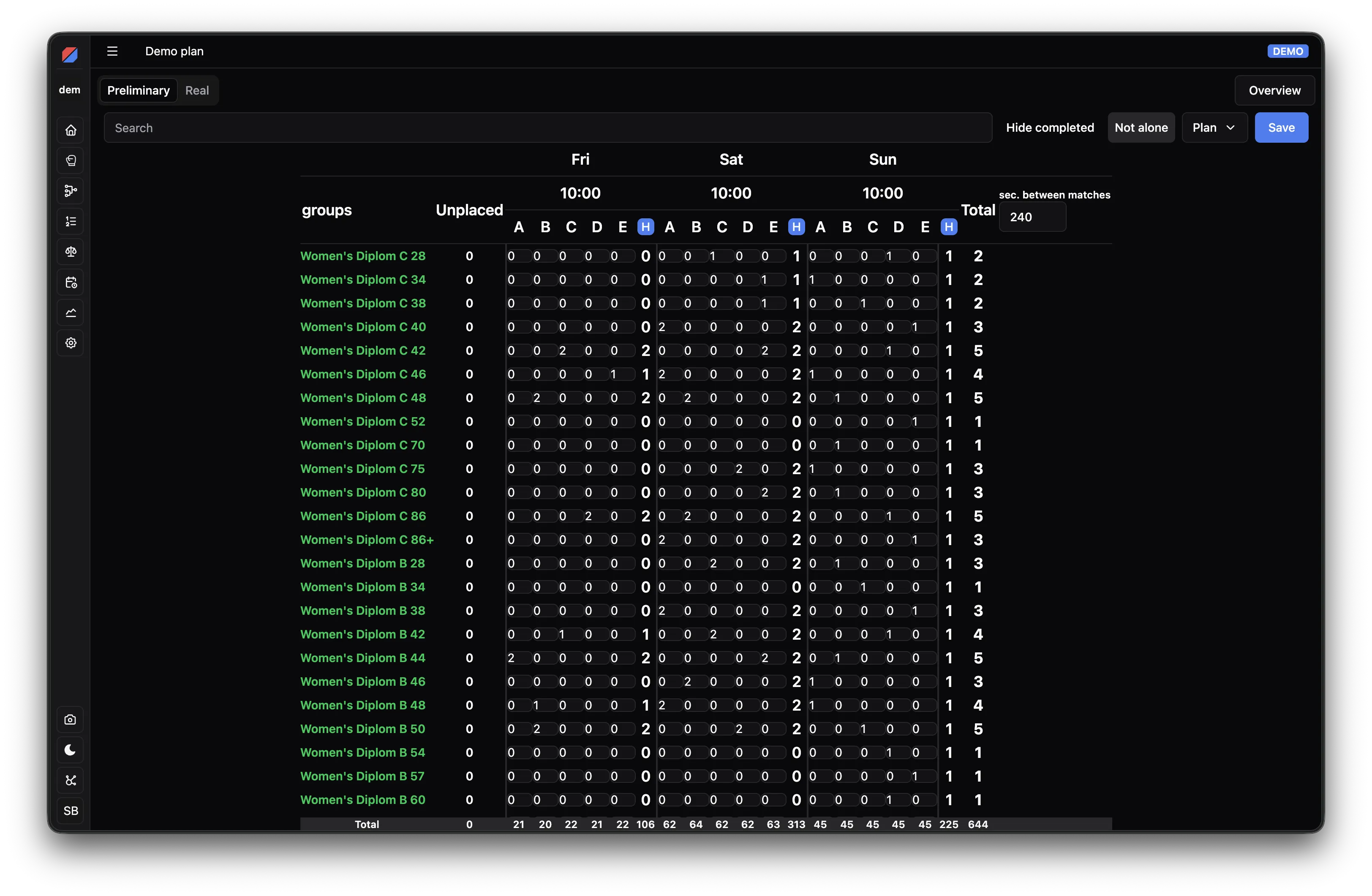
Real plan#
The real plan fills in with matches to place once groups are locked or the draw is done. You cannot plan groups that are not ready yet. If you made a preliminary plan, matches are placed in the same positions as that plan.
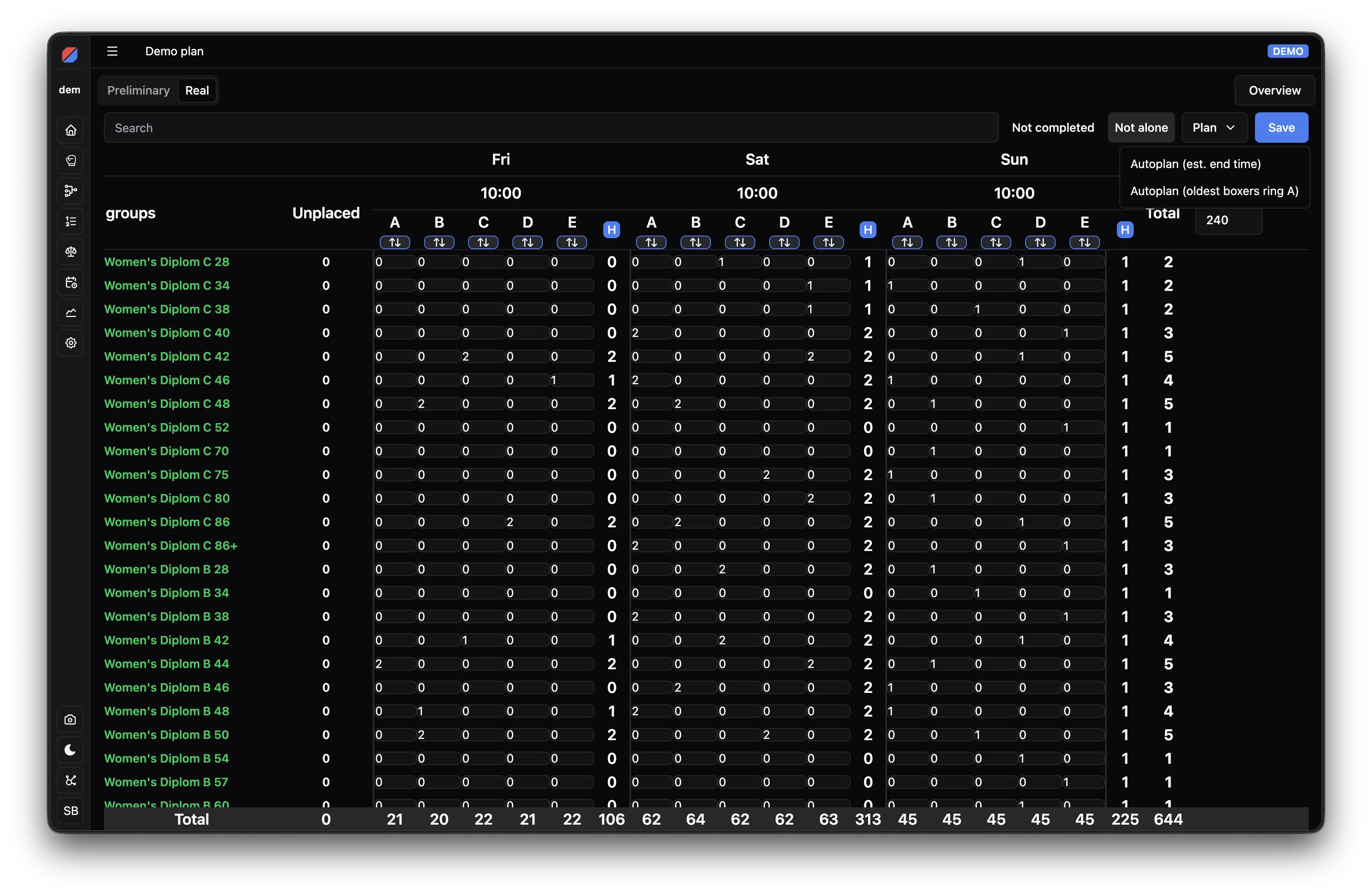
Both tabs use the same tools, described below.
How to plan#
- Tick groups with the checkboxes if you only want to work on some of them (optional).
- Add rules, such as a finals day, allowed rings or a maximum session length.
- Click Autoplan. You can change any number by hand afterwards.
- Click Save.
The question-mark button in the toolbar shows these steps. Every icon-only button shows its name when you hover over it.
Autoplan#
Autoplan places matches while following your rules and keeping the rings as even as possible. With groups ticked it plans only those groups and leaves the rest of the plan as it is; with nothing ticked it plans every group. A counter on the button shows how many groups are ticked.
While it runs, a notification shows progress. Stop and keep best keeps the best plan found so far. If no plan can satisfy all rules, a dialog lists the rules that conflict. Loosen one of them and try again.
The arrow next to Autoplan opens more options:
- Plan all groups and Plan selected groups.
- Quick methods (ignore rules): Even end times and Oldest boxers on first ring are faster, simpler planners that ignore your rules. They always work, and a notification tells you the rules were ignored.
- Remove everything from schedule moves all matches back to Unplaced.
- Advanced: the maximum time Autoplan may spend, the last solver report and a model download for troubleshooting.
Selecting groups#
Tick groups in the first column, or use the checkbox in the header to tick every visible group. As soon as a group is ticked, a bar appears above the table showing what you can do with them:
| Button | What it does |
|---|---|
| × | Untick all groups. |
| Two arrows | Invert the selection among visible groups. |
| ← / → | Move the ticked groups one day earlier or later. |
| Person with minus | Remove the ticked groups from the schedule. |
| Finals day (trophy) | Choose the day the finals must be on, or Any day. |
| Rings | Only allow the chosen rings. |
| Split arrows | Allow a group to use several rings in the same session. |
| Joined arrows | Preliminary only: don’t split the group into several brackets. |
| Crossed-out filter | Clear the rules of the ticked groups. |
Rules show as small tags after the group name, for example a trophy with the finals day or a ring icon with the allowed rings. Hover over a tag to see what it means. When a group has several rules, only the first is shown, followed by a +N tag; hover over it to see them all.
Session rules#
Each session header has a rules button next to the start time. Open it to set:
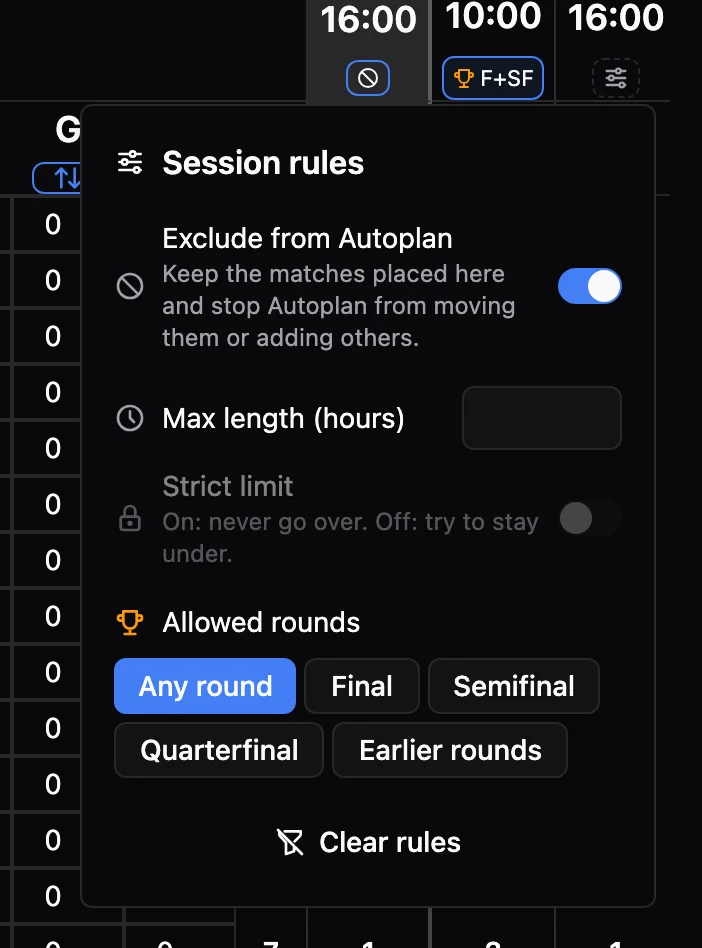
- Exclude from Autoplan: keep the matches that are placed in the session and stop Autoplan from moving them or adding others. Use it for a session you have arranged by hand. Matches in it still count towards each group, so Autoplan plans the rest of every group around them.
- Max length (hours): how long the session should take.
- Strict limit: when on, Autoplan never goes over the length. When off, it tries to stay under but may go over.
- Allowed rounds: for example only finals and semifinals in the last session.
When a session has rules, the button shows them, for example a clock with 4h, a trophy with F+SF or a crossed-out circle for an excluded session.
While any session is excluded, Autoplan in the preliminary plan no longer splits groups into several brackets; groups keep their current split.
Rules are saved in your browser only, per event. Another computer will not see them.
Reading the table#
- A group name in green means all its matches are planned. An orange warning before the name means an unusual split between days, and a red mark means the plan for that group is not valid.
- Group names are shortened to save space: the gender is shown as M or W. Groups with a custom class name are shown as written. Hover over a name to see it in full. Search matches both forms; on wide screens the search field is always open.
- The chevron button in each session hides or shows its rings. Collapse sessions you are not working on to fit more of the plan on screen. If the table is still wider than the page, scroll it sideways; the toolbar stays in place.
- The check-mark button next to search hides fully planned groups. The counter shows visible groups out of all groups.
Saving#
Save is highlighted and shows an orange dot when you have unsaved changes. The arrow next to it discards them. If you try to leave the page with unsaved changes, you are asked first.
Recommended workflow#
The short version, in order: create timeslots and rings, run a preliminary plan with Autoplan, check in and weigh in, split or merge groups, draw, then place and save matches in the real plan. Each step is detailed in Getting started with events. Avoid using the planning page once bouts have started: move individual matches from the matchlist instead.
Splitting groups#
Groups with too many boxers, or more bouts than allowed per day, can be split in two:
- In the Groups tab, groups that exceed their limit show a warning triangle with a split action.
- You can also open a group before it is drawn and use the split tool there.
- Splitting is based on who is checked in or weighed in, so split after check-in for balanced groups. If you split before check-in you may end up with uneven groups and have to merge again.
- Split groups are drawn separately: prefer Draw all groups or drawing each group from its own page.
Troubleshooting#
Matches are missing or unplanned. Matches shown with unfilled names have no ring assigned. Click the match, select a session and ring, then save.
The plan doesn’t change when I draw. The real plan only fills in for groups that are drawn or locked. Groups with no checked-in boxers cannot be planned.
End times look wrong. Estimates assume the round durations set on each class plus the configured break between bouts. Auto-created classes default to 3x3, so edit the class if estimates are too long.
In the real plan, each ring has a sort button under its name: solid when active, dashed when off. Clicking it re-sorts the matches in that ring by round, then age, then category experience (matches required to enter the category), then weight, and finally gender as a tie-breaker. While sorting is inactive, new matches placed in the ring land at the bottom of the list.